Display an RSS feed in Joomla 1.5
This tutorial will show you how to display an RSS feed in Joomla 1.5
RSS (Really Simple Syndication) feeds enable you to provide an up-to-the-minute list of all the articles on an external site
This list is in a specific format that many other web software programs and websites — even Joomla sites — can link to and easily display
1) Click Extensions
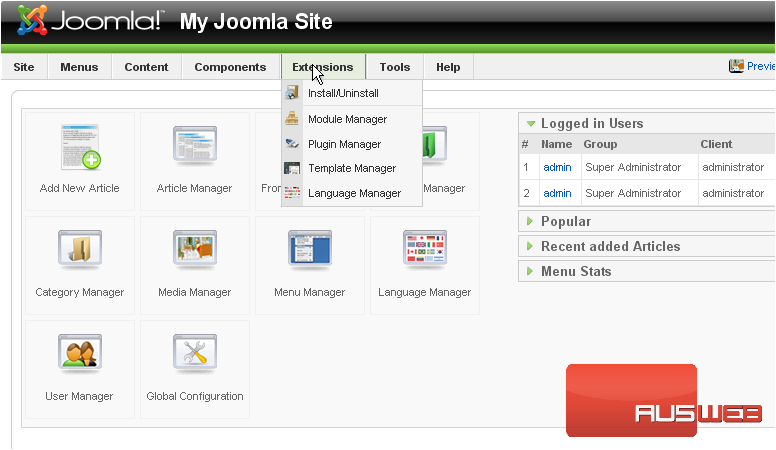
2) Click Module Manager
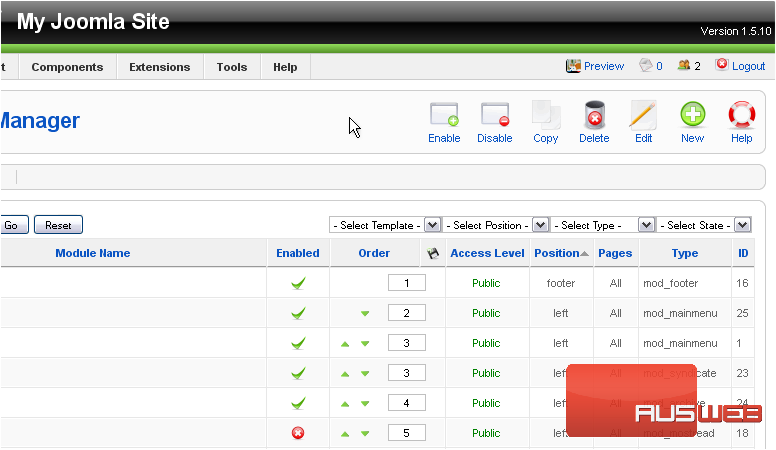
Scroll right
3) Click New
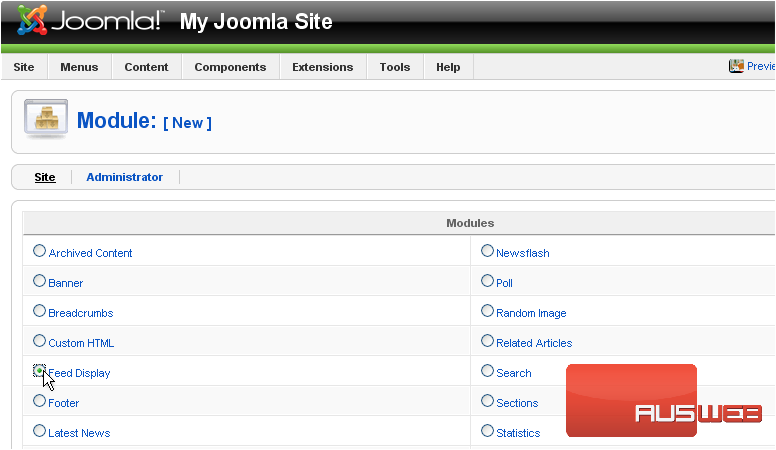
4) Select Feed Display
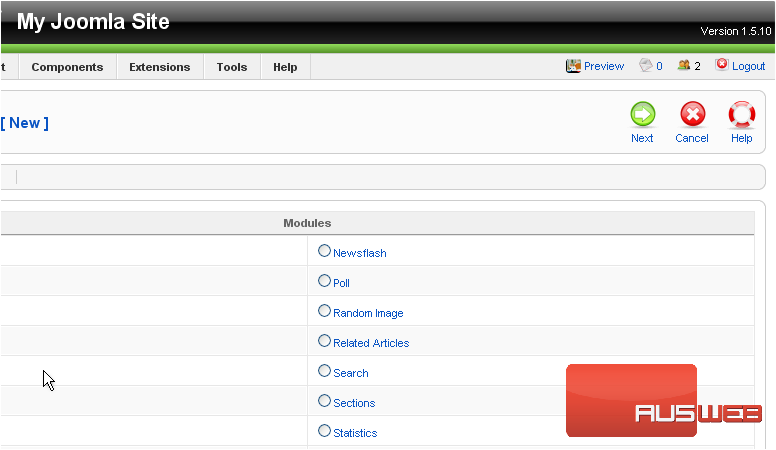
Scroll right
5) Click Next
6) Enter a Title
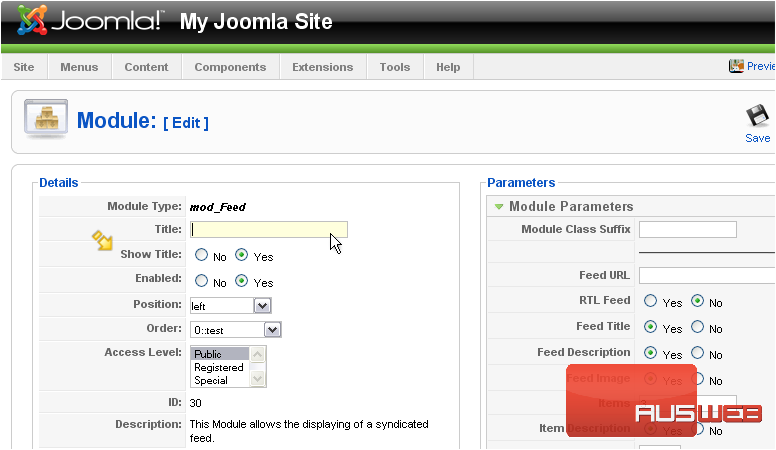
If Show Title is set to Yes, the module name will be displayed on the front-end
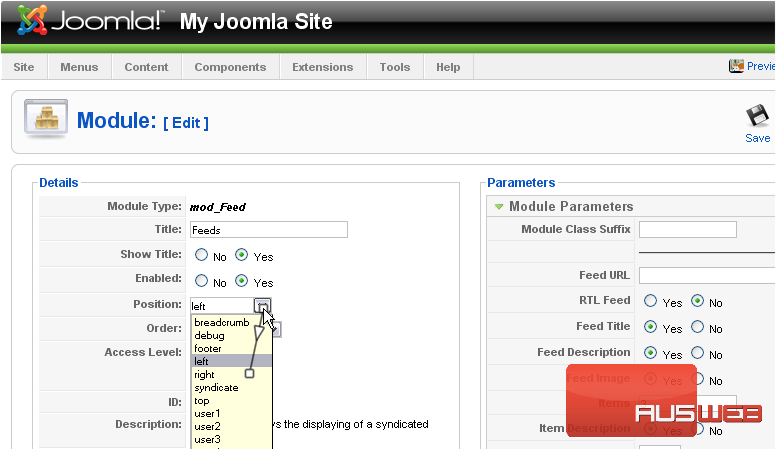
7) Choose the position where the module should be displayed on the page
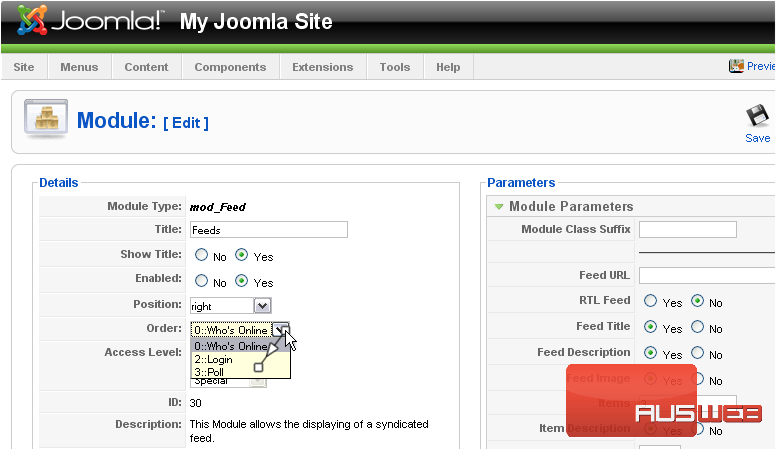
8) Set the order this module will display in
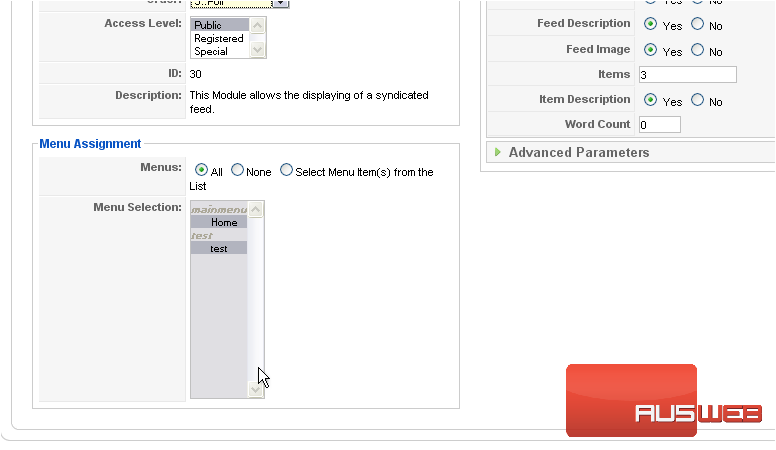
Scroll down
Here, you can set the menu in which this module will display
Scroll up and right
9) Enter the suffix for the CSS class of this module
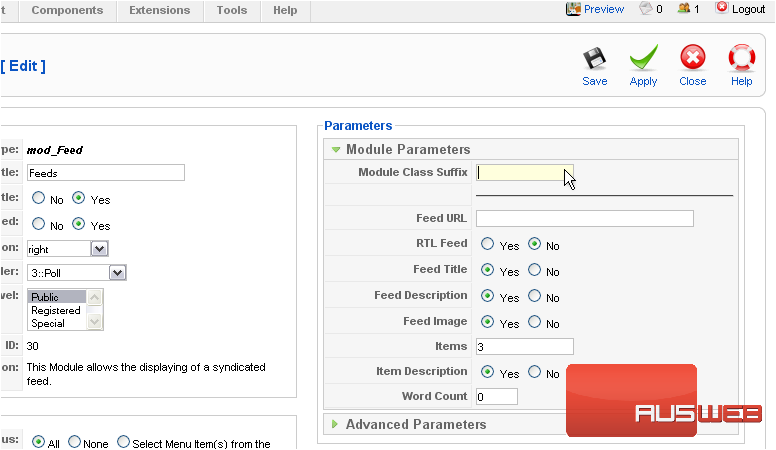
In this example, the CSS class name of this module would be .module-feed
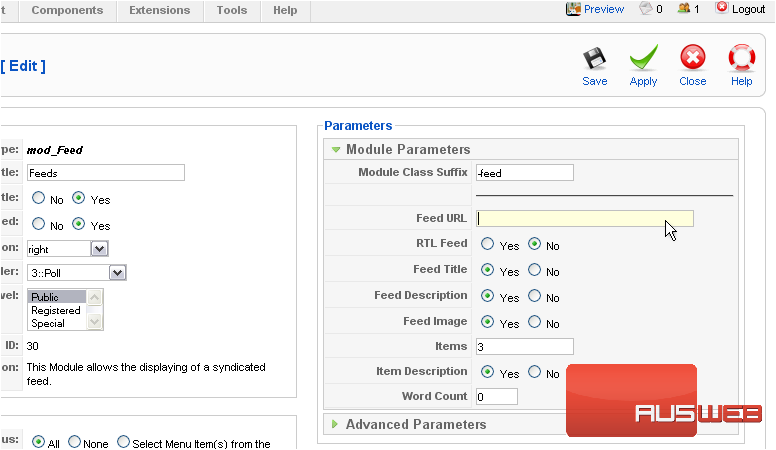
10) Type the URL where the feed is located
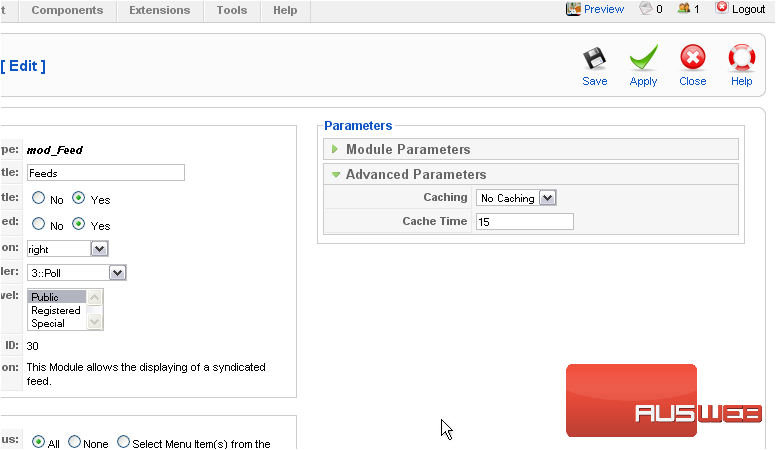
11) Click Advanced Parameters
This is where you can set your caching options
12) Click Save
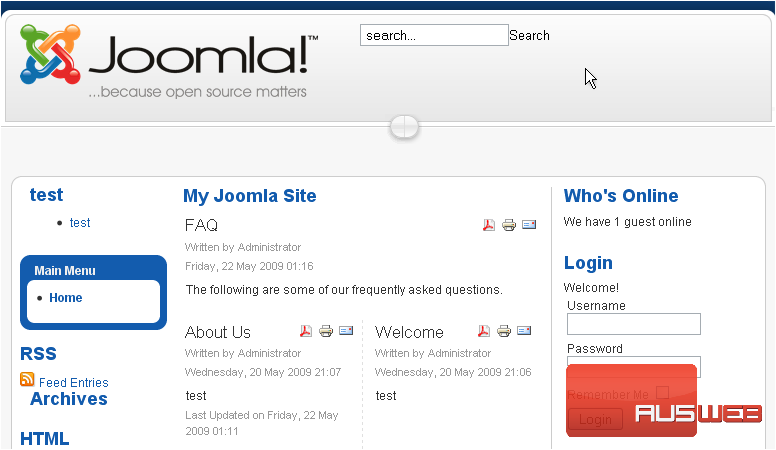
The feeds will now display on our front page. Let’s go to our Joomla site now
Scroll down
The feeds are displayed here
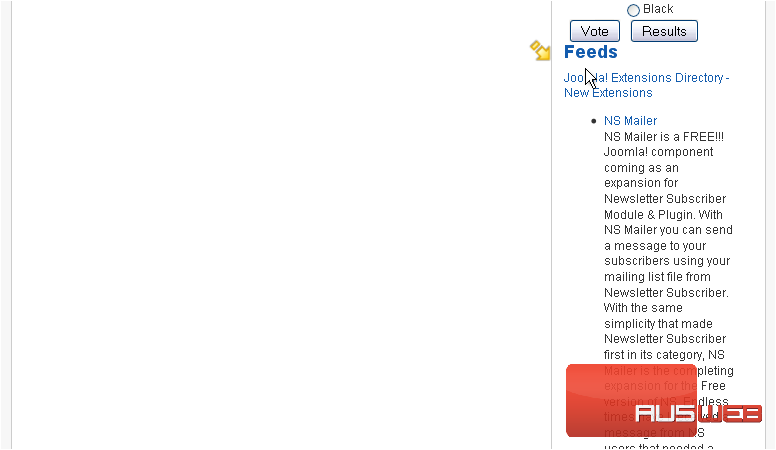
Let’s return to our admin panel and see a second way to display an RSS feed
Instead of having all the content of the feed display in the sidebar, let’s create a menu item that links to a separate page with the feeds displayed there
13) Click Components
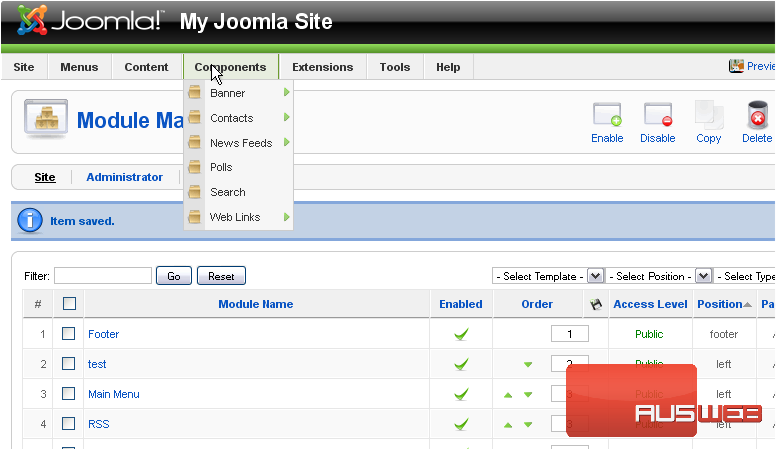
14) Then News Feeds
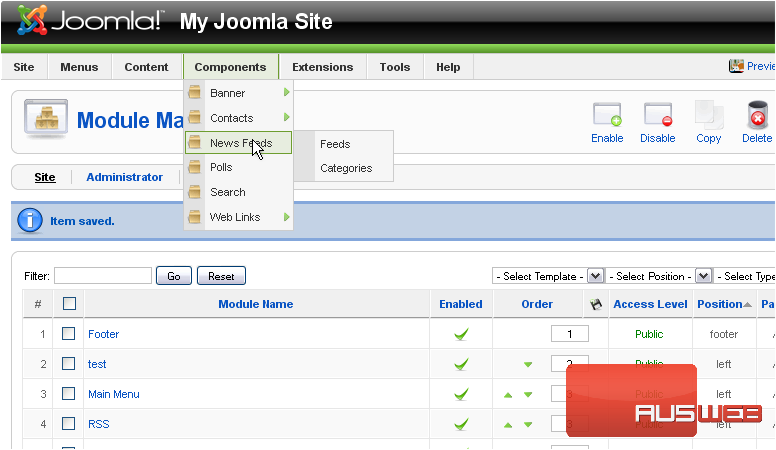
15) Then Categories
Scroll right
16) Click New
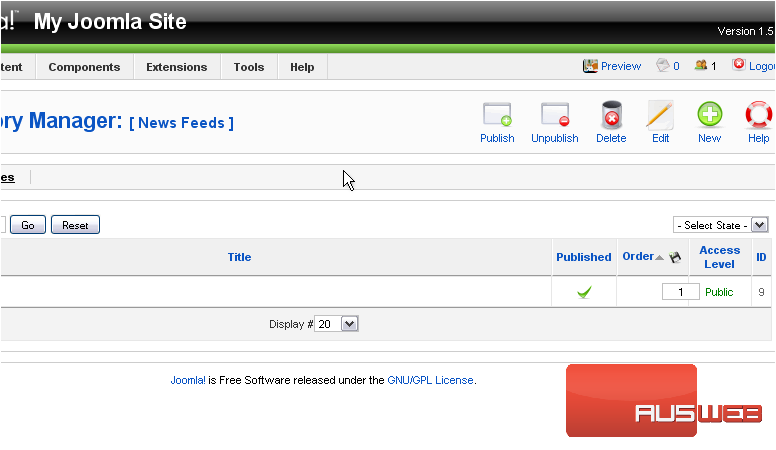
17) Enter a Title for the new category
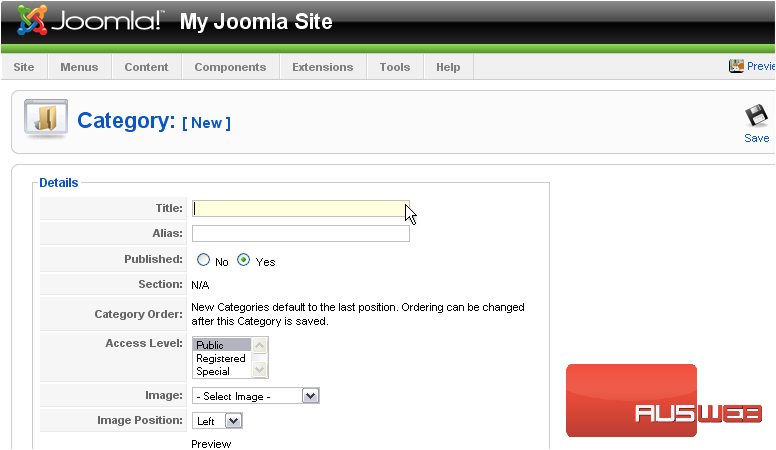
18) The Alias is an internal name that Joomla uses in the URL if SEF is enabled
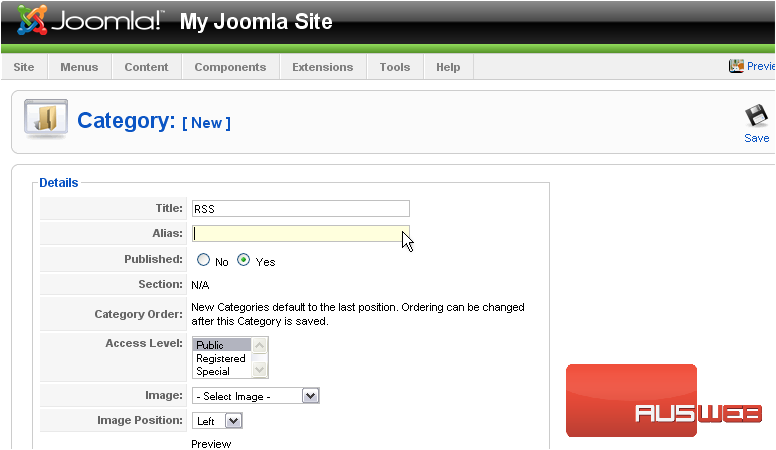
Entering an alias is optional; and, if left blank, Joomla will create a default one by automatically converting the title to lowercase and replacing any spaces with a hyphen
However, you may manually enter an alias, if desired
19) Click Save
Now let’s create the feed
20) Click Components
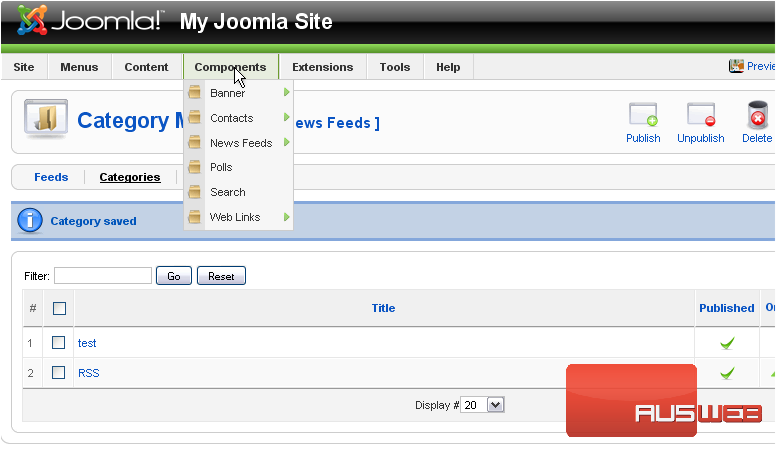
21) Then click News Feeds
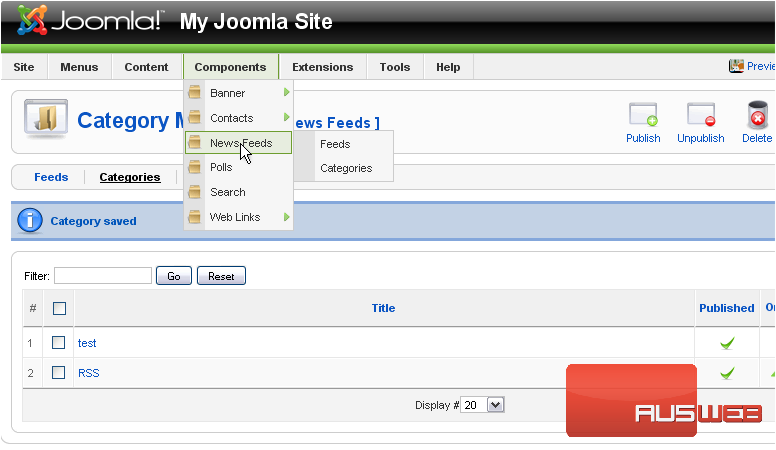
22) Then Feeds
Scroll right
23) Click New
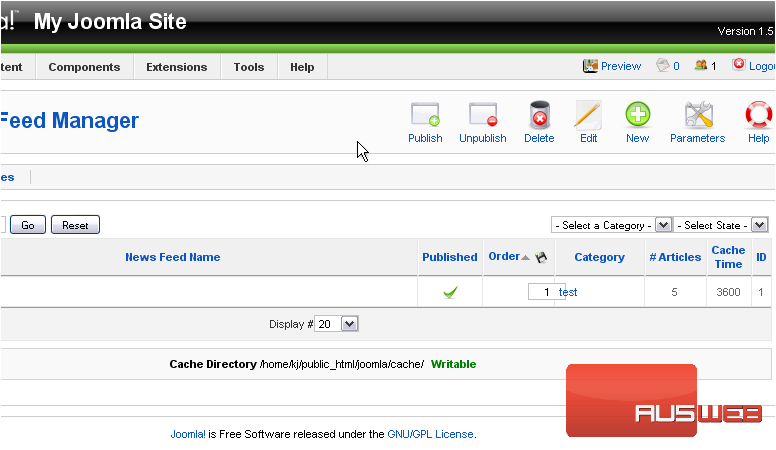
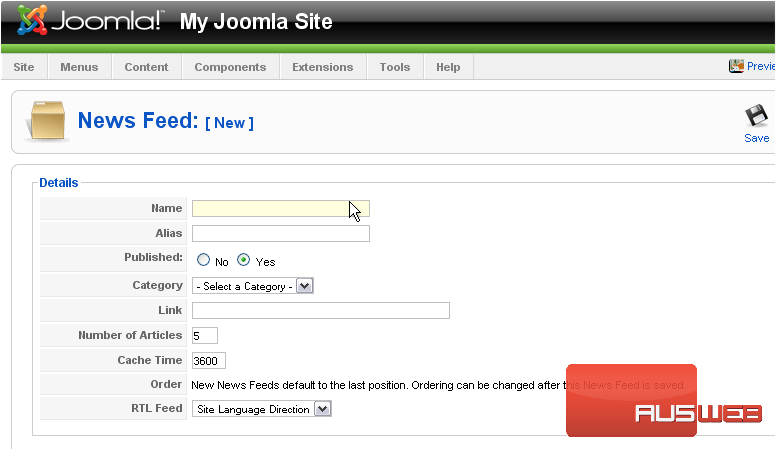
24) Type a Name for the feed
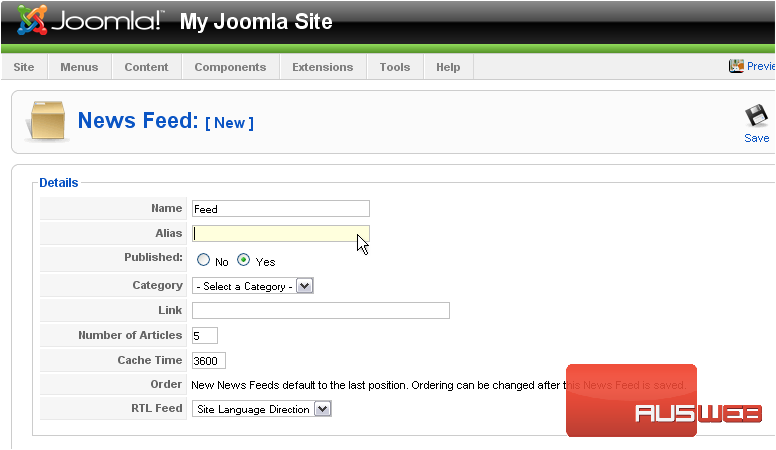
Again, entering an alias is optional
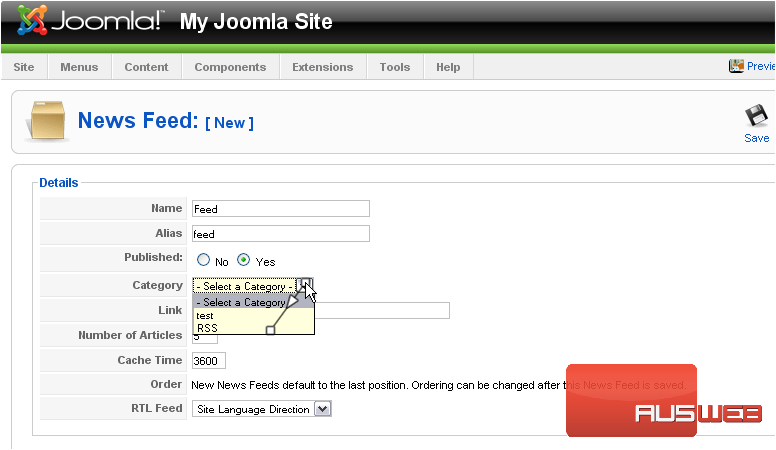
25) Select the category we just created
26) Enter the link where the feed is located
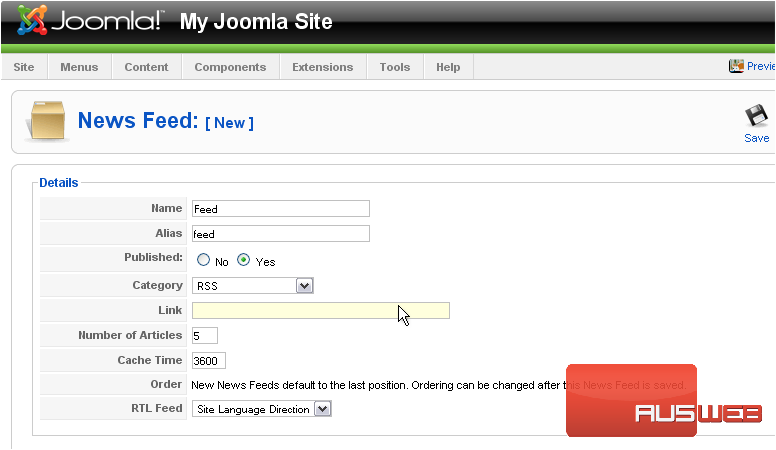
27) Click Save
Now let’s create a menu to display a link to the news feed page
28) Go to Menus
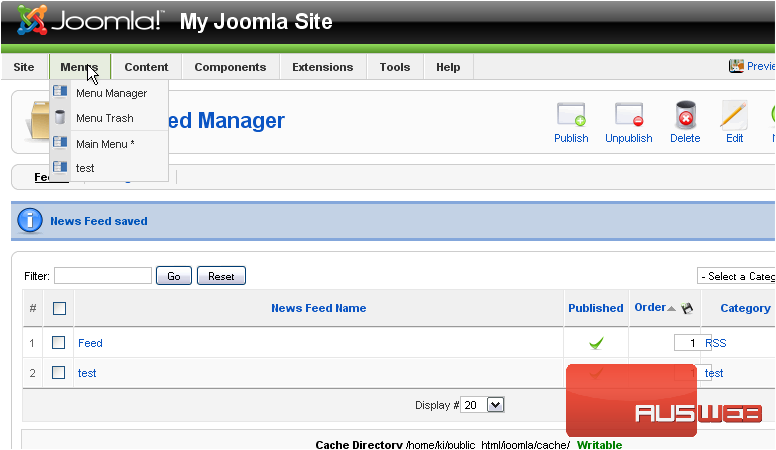
29) And click Menu Manager
Scroll right
30) Click New
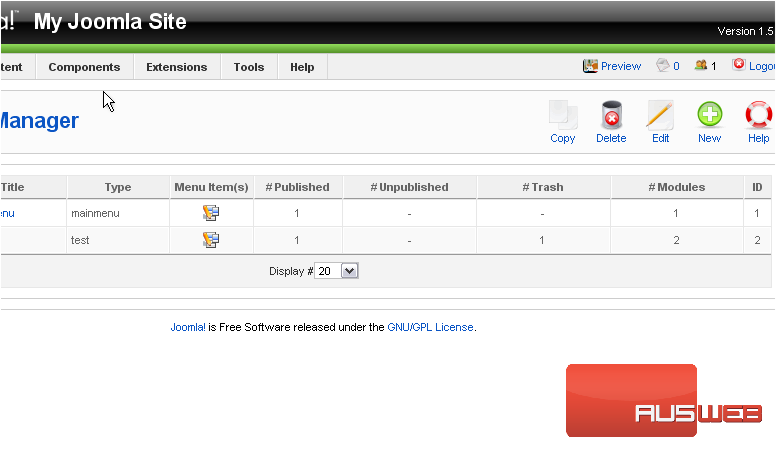
The Unique Name is what Joomla uses to identify this module within the code
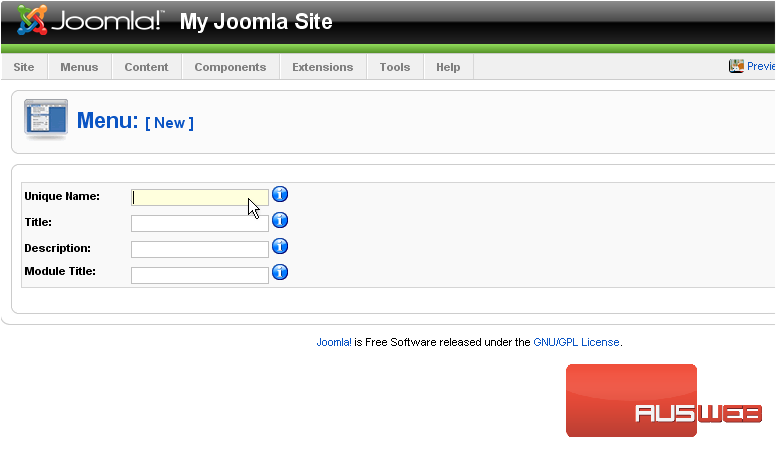
31) Enter a Title
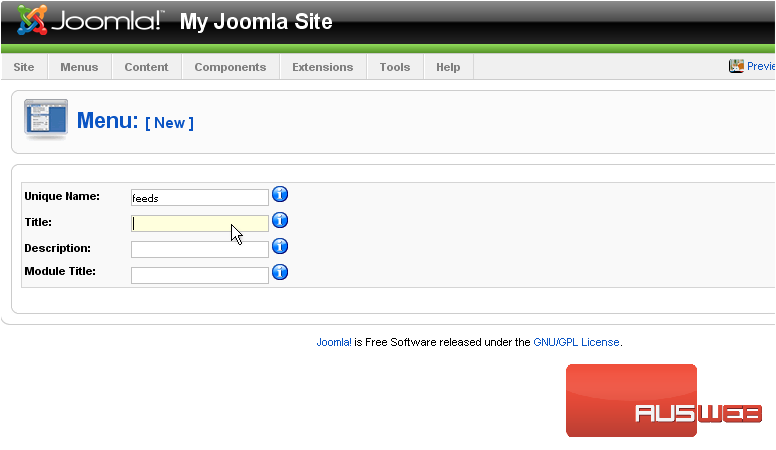
32) Type a Description
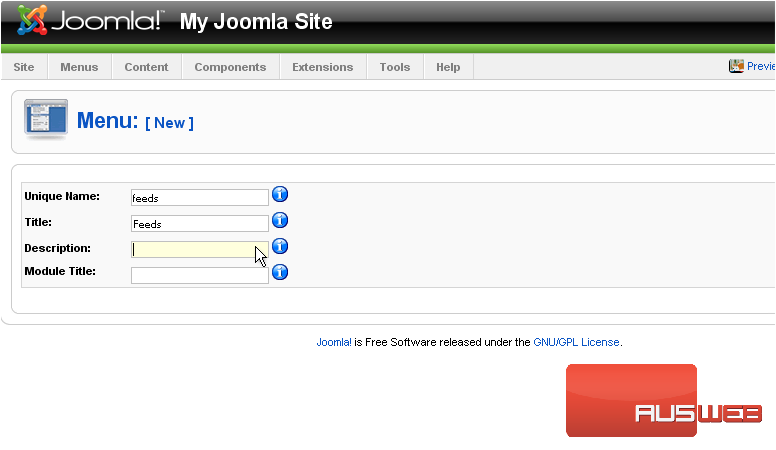
33) The Module Title is what will display on the front-end. If this field is left blank, the module will not be created
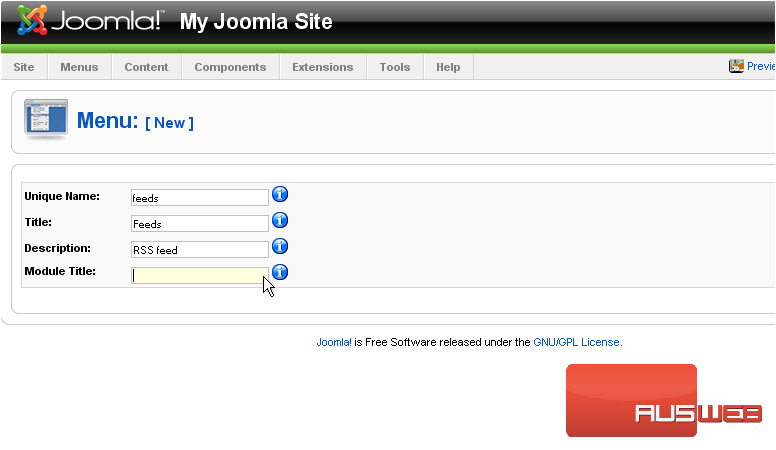
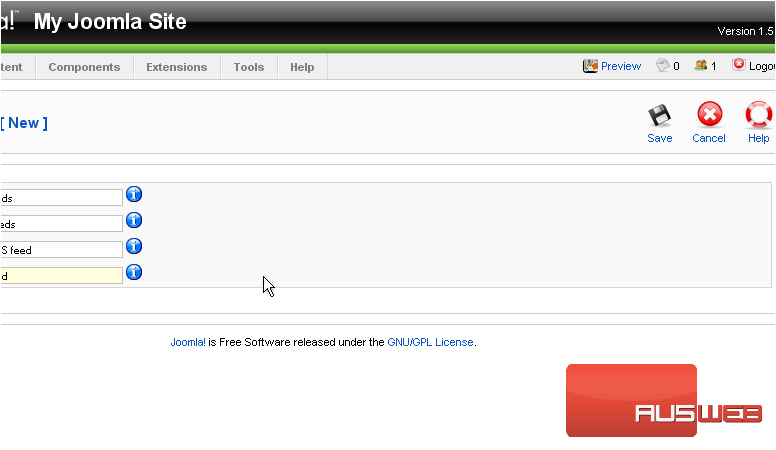
Scroll right
34) Click Save
The next thing we need to do is add a menu link to the category we just created
35) Go to Menus
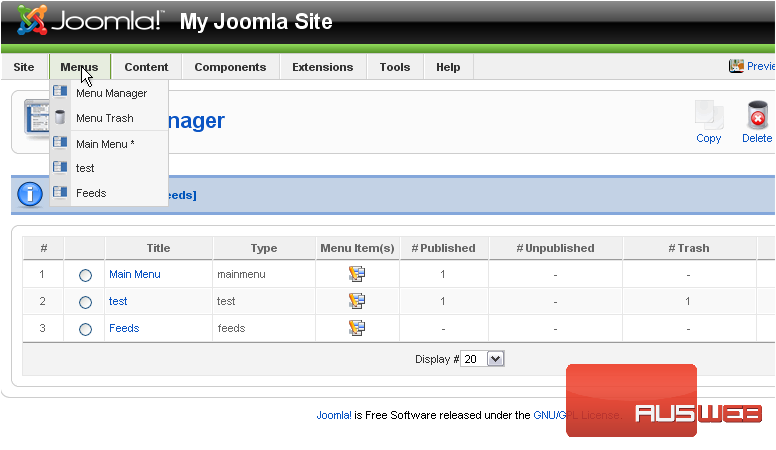
36) And click Feeds
Scroll right
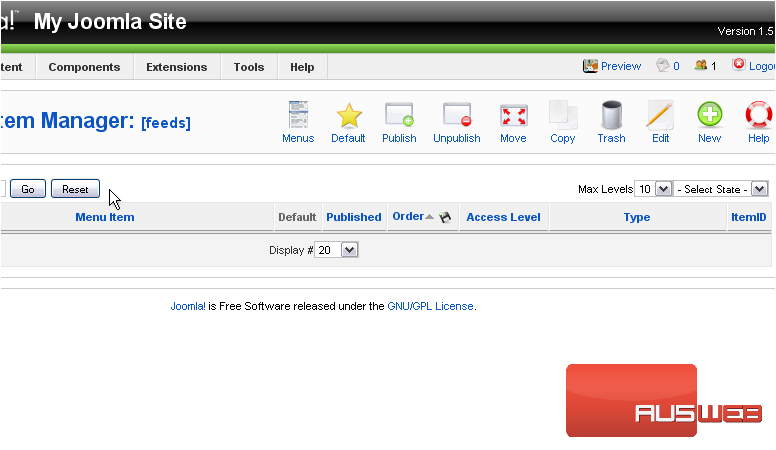
37) Click New
38) Select News Feeds
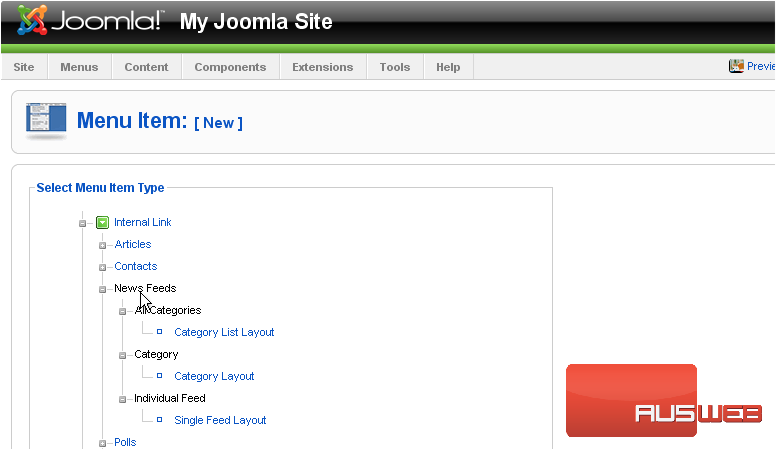
39) Click Category Layout
40) Enter a Title
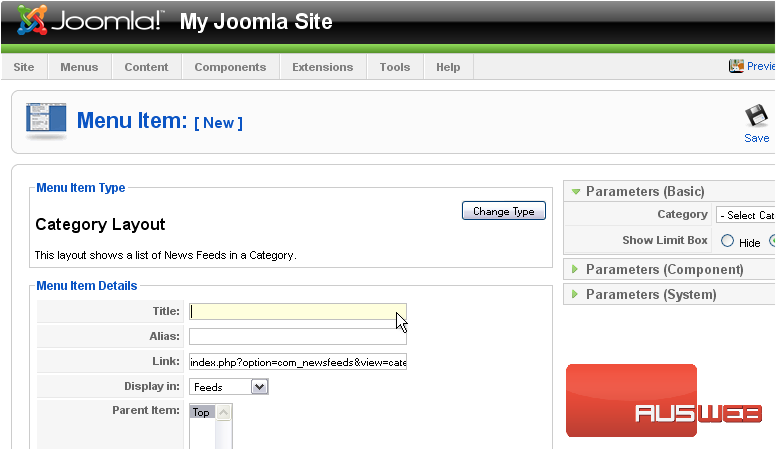
41) Type an Alias
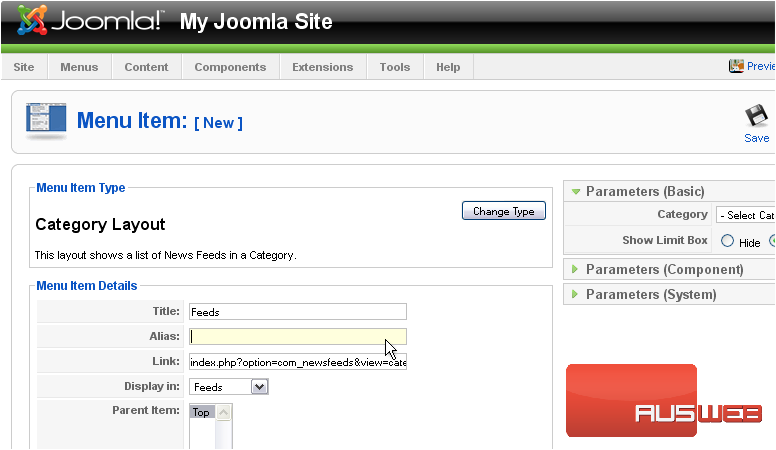
42) Select the menu this link should appear in
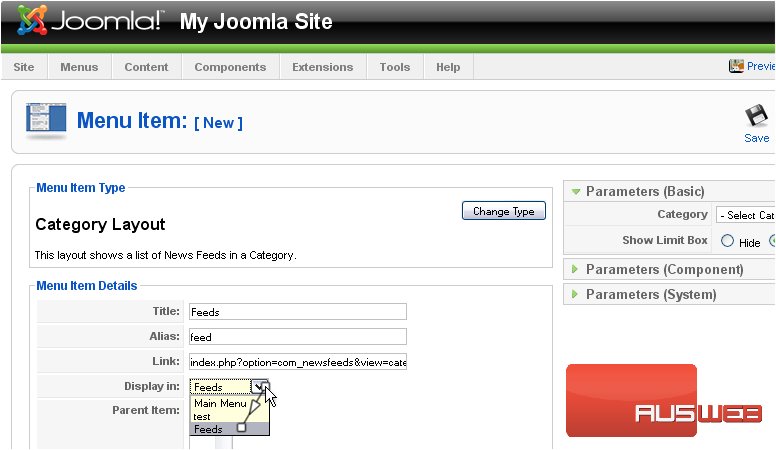
Scroll right
43) Select the Category
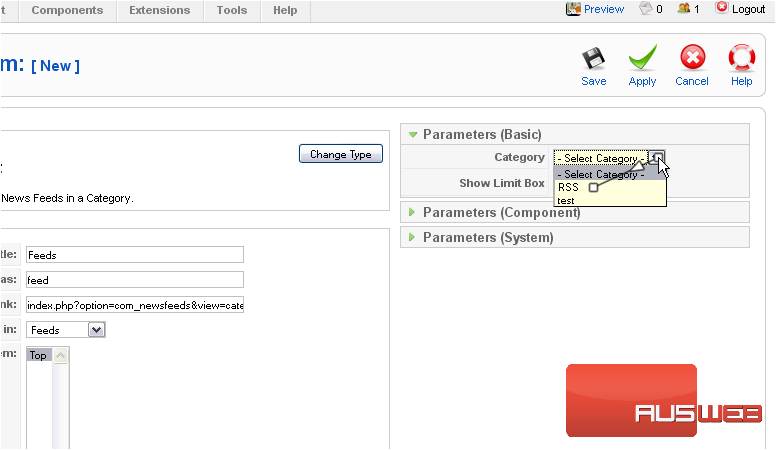
44) Click Save
The last thing we need to do is enable the menu
45) Click Extensions
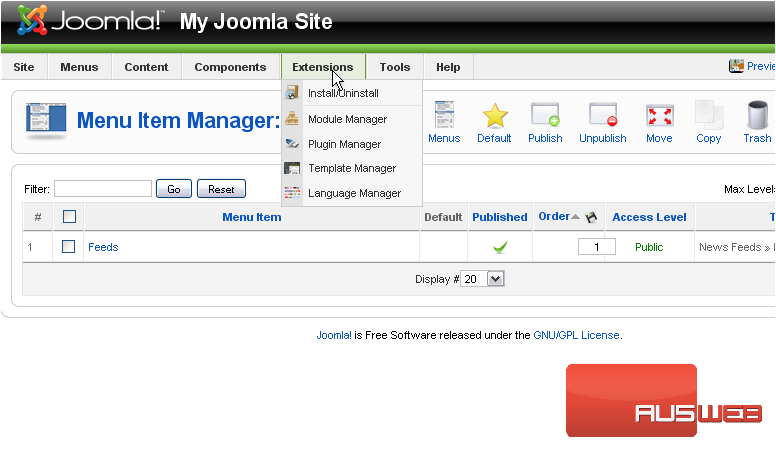
46) Then Module Manager
47) Click the red X next to the item
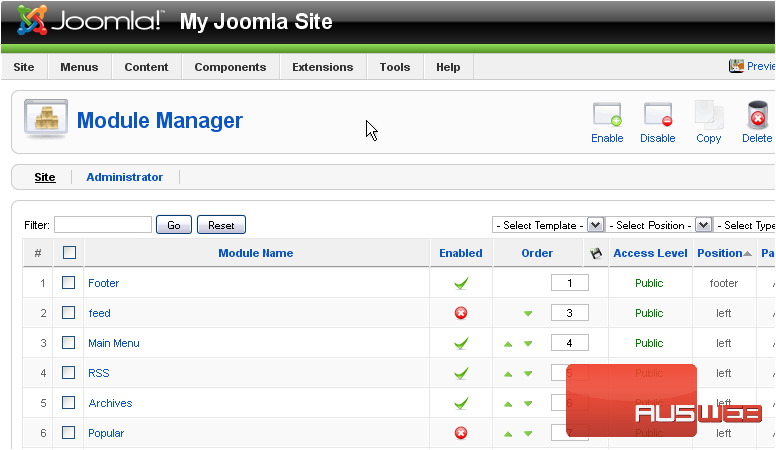
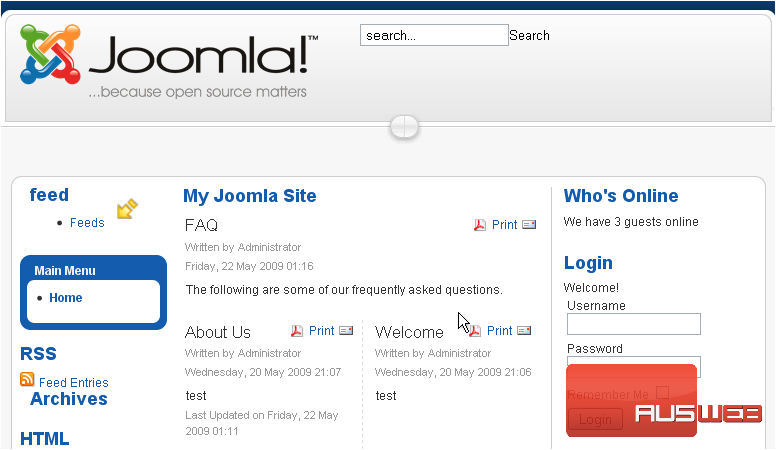
The menu will now show up on the front-end. Let’s go to our Joomla site
Here is the link we created
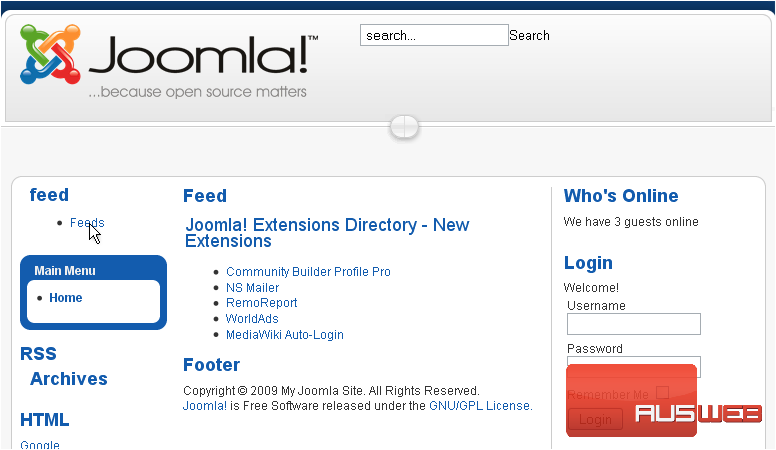
The feed is now displayed on it’s own page
This is the end of the tutorial. You now know how to display RSS feeds in Joomla
